
CRM Data Migration for Small Teams: A Safe Checklist for Switching Tools in 2026
A new CRM can help a team sell and serve with less stress. But moving data to it can be hard. A contact may go missing. A sales note may end up in the wrong place. Staff may not know which tool to use after the move.
You can cut that risk with a clear plan. First, check the files you have. Then test a small move. Only then should you move the full set. This guide walks a small team through the steps.
Know why you want to switch
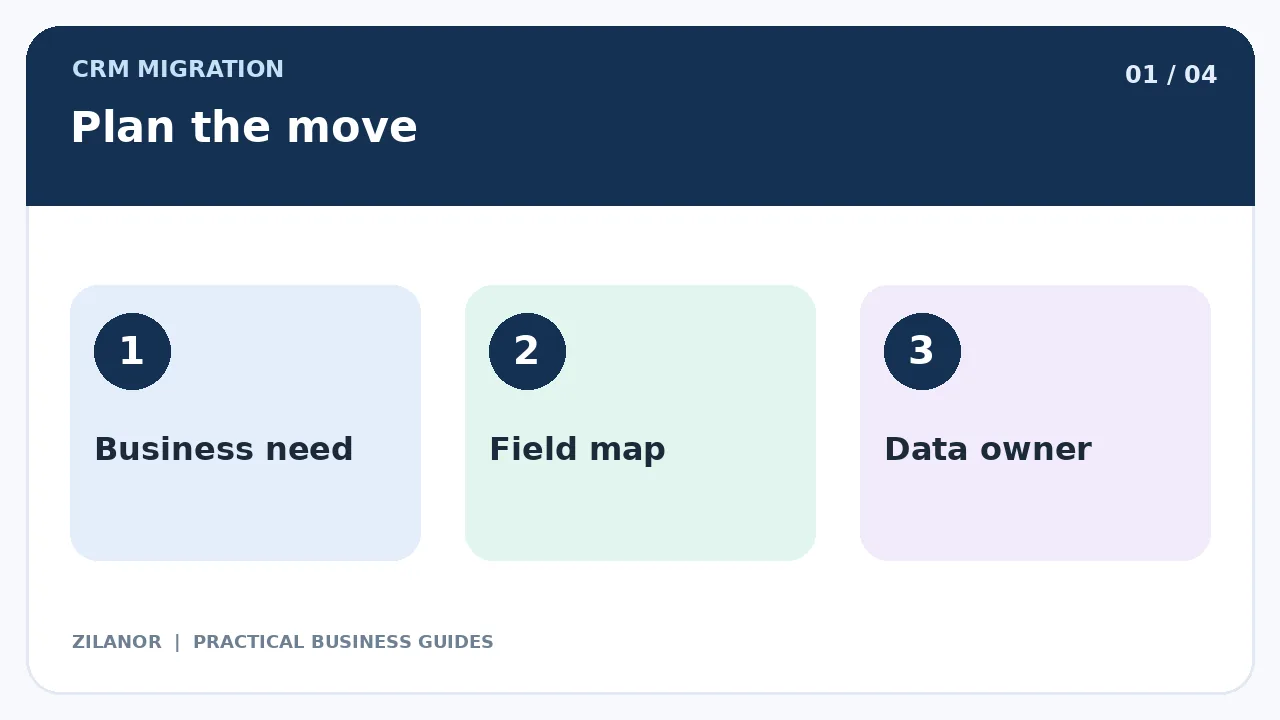
Start with the problem. Does the old tool cost too much? Does it fail to link with your booking app? Is it hard to see which leads need a reply? Write the goal in one clear line.
Ask staff what they do each week. They may add leads, write sales notes, book calls, or mark deals as won. Pick a few tasks to test in the new tool. A long list of shiny features is less useful than a test of real work.
Set a clear pass rule
Can a staff member find the last note from a buyer? Can they see who owns a deal? Can they find a lead that asked to stop sales mail? Write what the new tool must do before you buy or move.
Also note what can wait. A small team may not need every new feature on day one. Keep the first move as simple as you can.
Find where the data lives
Names and deals may sit in more than one place. You may have a CRM, a sheet, an email app, and a web form. Make a list of each source. Name the person who owns it. Decide which one has the best new facts.
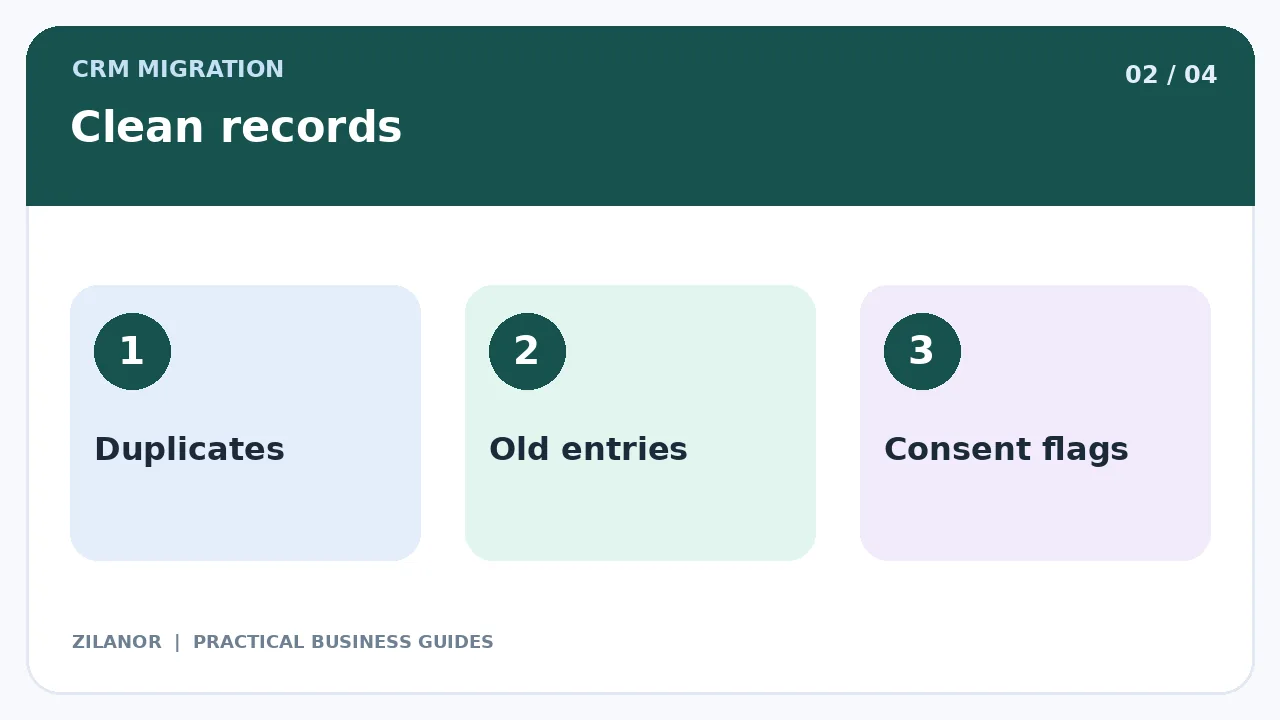
Do not copy every old row just because it is there. Some names may be out of date. Some files may have no fair reason to keep them. Check your privacy rules before you move them.
Clean up repeat records
One buyer may have two email names. Two buyers may have the same full name. Do not merge records just by name. Use a trusted ID or review the case by hand. Keep a safe copy of the old data while you test the move.
Look for blank fields and old phone numbers too. Fix the easy flaws before the import. A new CRM will not make bad source data right on its own.
Map the old fields to new ones
Make a short sheet. Put the old field on one side and the new field on the other. Start with name, email, phone, company, deal stage, and owner. Then add custom fields that your team needs.
Watch for fields that look the same but mean a new thing. A “Qualified” deal stage may not use the same rules in both tools. Dates may use a new format. A blank value may wipe out a good one. Test each case.
Keep email choices safe
If a person asked you to stop sales mail, that choice must move too. Check opt-outs, consent dates, and the source of each choice. Do not turn an old no into a new yes. A new CRM does not give you a new right to send ads.
Ask a trained adviser when the rules are not clear. The right process may vary by place and by how you got the lead.
Run a small test move
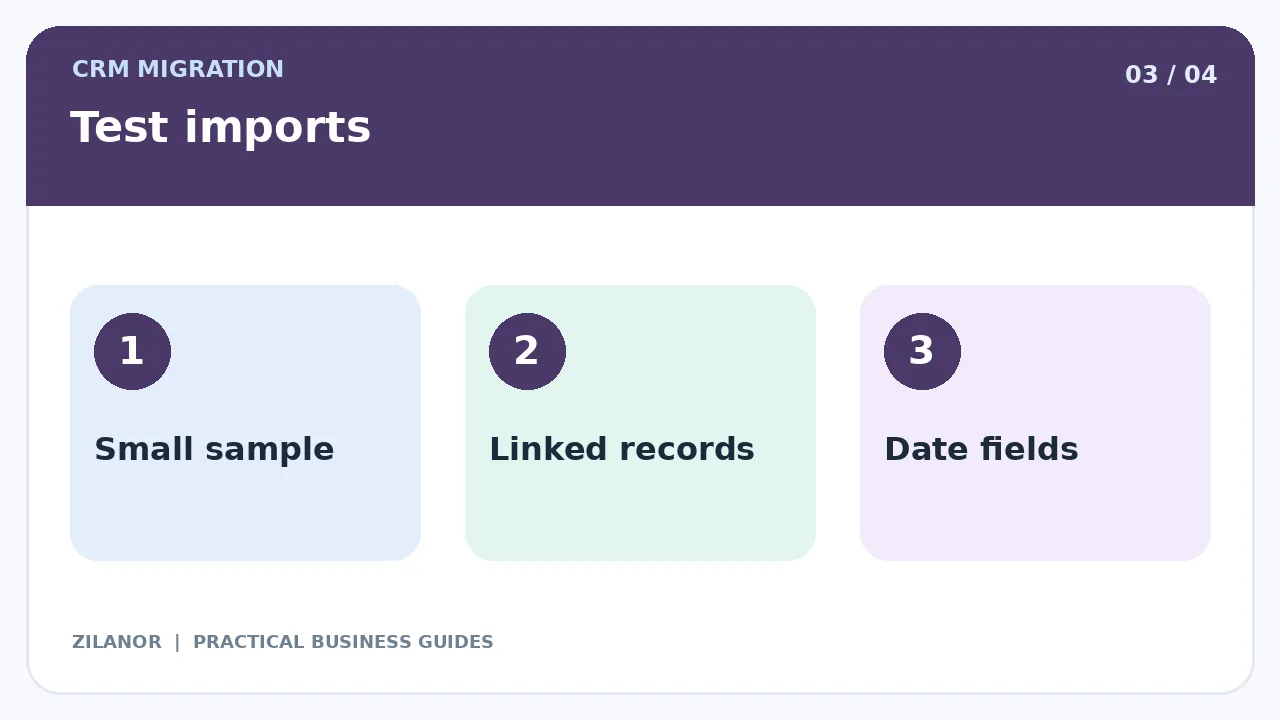
Pick a set of sample records. Use some simple contacts and some hard ones. Add a deal with notes, a buyer with no phone, an opt-out, and a company with many people. Move that set into a test area if the tool has one.
Do not trust a green “import done” note on its own. Open the new records. Check names, dates, notes, owners, and links. Try to find a sample buyer with search. Ask a staff member who did not run the move to do the same.
Protect the files as they move
A data export may hold names, phone numbers, and private notes. Keep it in a safe folder. Give access only to the staff who need it. Do not send the whole file through a casual chat or leave it on a public link.
Use the safe import route the tools offer. Set a date to remove test copies when the move is done and checked. Do not give a short-term helper access for months after their work ends.
Plan the day of the switch
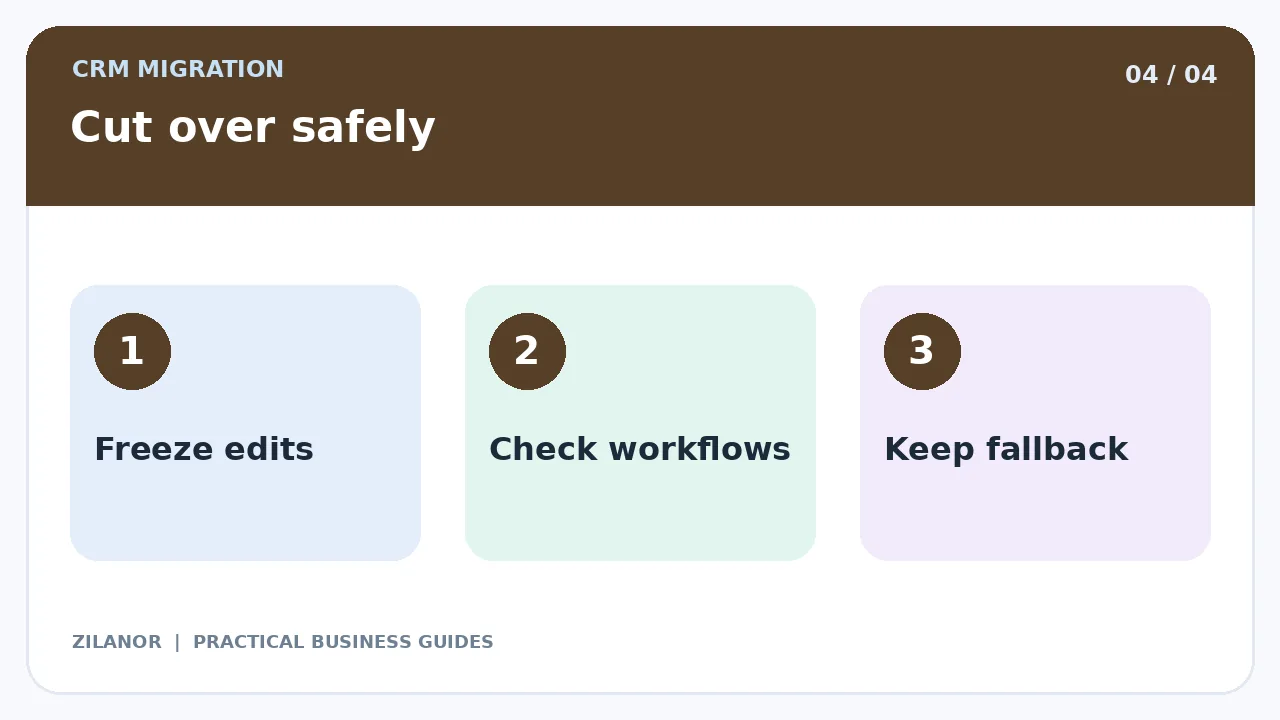
Choose a calm time. Tell the team when they should stop edits in the old CRM. If both tools are live at once, a record may change in one but not the other. This can cause lost notes and mixed work.
Keep the old tool and a safe export until the new one passes checks. Have a clear way back if key records are lost. Do not shut down the old account the same hour the first import ends.
Test links with other apps
A web form may add a lead. A booking tool may set a call. A bill app may mark a deal as paid. Test these links one by one. Send a fake lead and check where it goes. Test a failed form too.
Watch out for mail flows that may send real ads to test names. Turn off old links only after the new path works. Keep a list of live links and who owns them.
Train staff on key tasks
Do not teach each menu in one long call. Show the tasks staff do most. Add a lead. Write a note. Set a due date. Find a past chat. Change a deal stage. Let each worker try a sample task.
Ask where the steps felt hard. Write a short guide for the team. Add screen shots from your own setup if that helps. A tool is not a good fit if staff go back to private sheets to avoid it.
Check the data after launch
Check on day one, at the end of week one, and after a month. Look for records with no owner, lost notes, repeat names, and failed web forms. Compare a sample with the old export. Fix the cause of each flaw.
Track a few useful signs. Can leads be found? Are tasks sent to the right worker? Are opt-outs kept? Do new forms go to the right list? A high row count alone does not prove the move worked.
Example: a small service firm
A firm has thousands of old contacts. It wants a new CRM so online bookings can flow into sales. The team first finds old event names that no longer need to move. It checks which records it may keep.
It then tests a small set of varied records. The test shows that stop-mail flags did not move. The team fixes the field map before the full run. On launch day, staff pause edits in the old tool. They move the data, test the booking link, and check sample notes.
The best result is not a large import count. It is that staff can serve buyers with the right facts and no lost work.
After the move
Keep a short log of bugs and fixes. Ask staff to flag odd records. Remove old app keys when you no longer need them. Set the end date for the old plan once you know the new tool works.
Review the new CRM after a month. It may be time to add more features then. First, make sure the core work is sound.
Quick checklist
- Write the reason for the move.
- Clean names, fields, and opt-outs.
- Test a small set of records.
- Protect exports and tool access.
- Check the new flow after launch.
Common questions
Should I move all old notes?
Not always. Keep what you need and are allowed to store. Some notes may be too old or private.
Can I switch in one day?
Maybe, if the data and links are simple. Test first and keep a way back.
Can a sheet help with the plan?
Yes. A clear field map and test log can work well for a small team.
Sources
For safe business data, read FTC cyber tips. For mail consent, see ICO guidance where it applies. Use the live help pages from your CRM tools for import steps.