
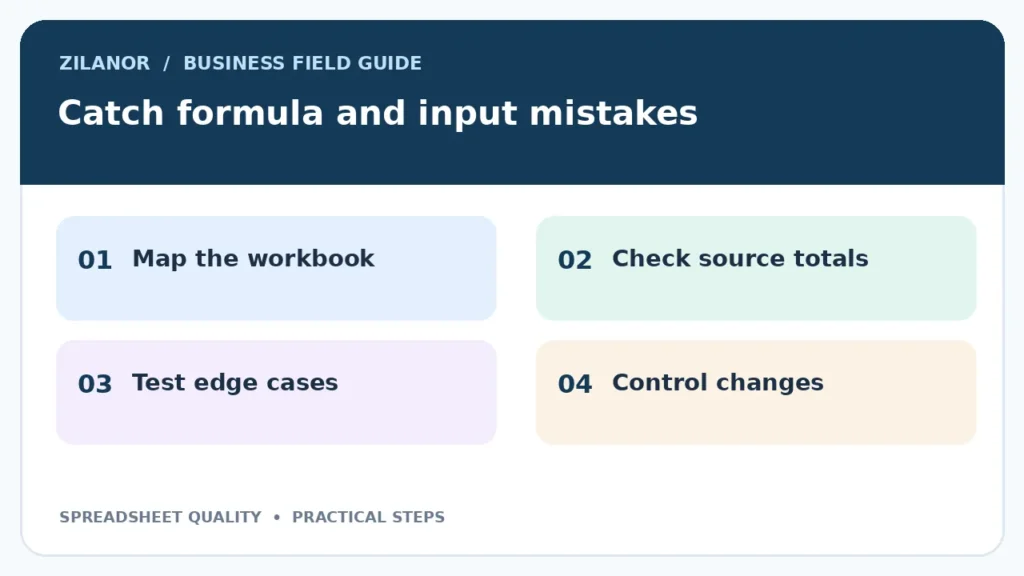

Spreadsheet Error Checks for Small Teams: A Simple 2026 Quality Plan
A spreadsheet can run a small firm. It may track prices, shifts, stock or a monthly plan. Yet one wrong cell can turn a useful file into a bad decision. The answer is not to ban sheets or buy a large system at once. A few clear checks can catch common mistakes before they reach a customer or a bank.
This guide shows how to check a shared spreadsheet with a small team. It works in Microsoft Excel, Google Sheets and similar tools. Each product has its own features, so check current help pages for the exact steps. The main controls work even with a basic file.
Start with the decision the sheet supports
Know what a wrong value could change
Ask what happens after the file is used. Does it set a product price? Does it tell a buyer how much stock is left? Does it send a wage total to payroll? The answer tells you how much review is needed. A colour list for the staff room needs less care than a file used to send a tax report.
Make a short note at the top of the workbook. State its purpose, owner, last review date and the source of its inputs. Put a link to the written work rule where staff can see it. This gives the next user a clue when the person who made the sheet is away.
Imagine a bakery that uses a sheet to set cake prices. It holds ingredient costs, labour time and a final selling price. A mistyped unit price could make a batch look cheap to make. The owner should test those input cells before using the new price list.
Mark input, formula and result cells
Make the file hard to change by mistake
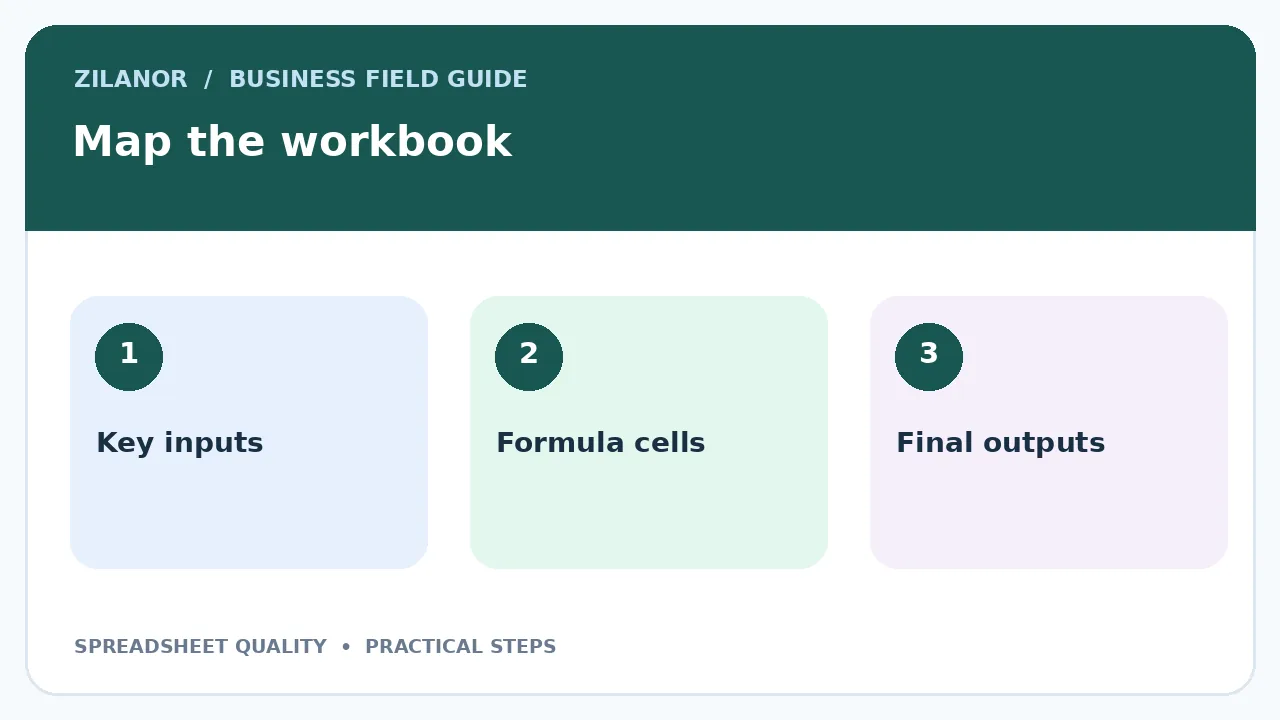
Separate the cells people type into from the cells that calculate. Use clear labels and a simple colour key. If the sheet is shared, lock formula cells where the tool allows it. Do not rely on colour alone; add a note or heading so the difference is clear to all users.
A staff member should know which cells they may change and which cells need an owner. If the file uses named ranges, explain them in plain words. Do not hide key calculations in a place that only one person understands. A simple formula that the team can check is often better than a clever one.
Set input rules for dates, amounts and category names. For example, allow only a real date in the delivery field and only listed values in an order state field. Add a note about the currency and tax basis. If two markets use different currencies, label each amount so it is not mixed with another.
Check totals against a known source
Reconcile before you trust
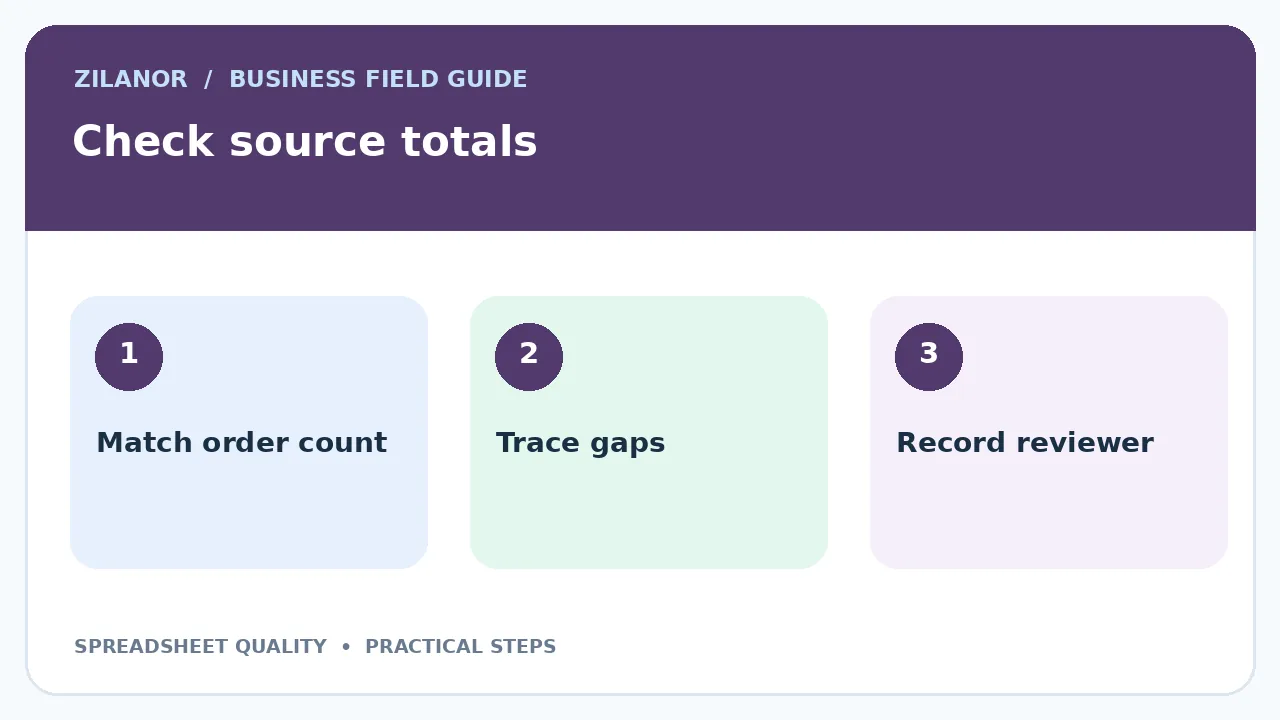
A file may add rows as planned yet miss new rows below the formula range. Compare the final count or total with a source you trust. A sales sheet should match the order system for the same dates. A stock list should match a count or a warehouse record.
Do this at a set time. A daily sheet may need a check at the end of each day. A monthly plan may only need one before a report goes out. Note who checked it. A check without a name or date is hard to repeat when a question comes up.
If the totals do not match, do not add a balancing number to make the file look right. Find the gap. It may be a missed row, a filter, a duplicate order or a different date range. Write down the cause so the same issue is easier to find next time.
Use a small set of test cases
Test the edges, not only a normal row
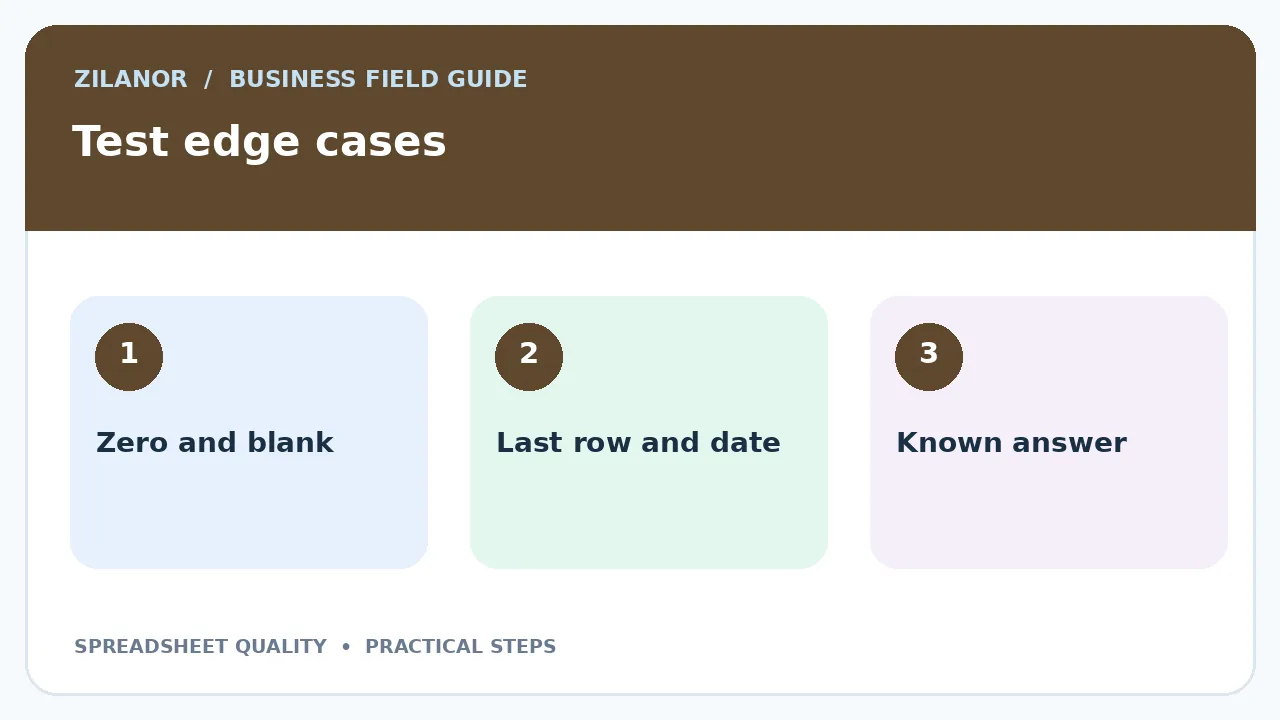
Make a safe copy of the workbook. Try a normal case, a zero value, a blank cell, a large value and a date at the end of the month. Check what the formula does. If a file handles tax or discounts, test the case where neither applies as well as the case where both apply.
For a shift rota, test a worker with no shifts and one with extra hours. For a pricing file, test a product with no stock and a price change. For an invoice plan, test a partial payment. Each case should have an expected result written before the test starts.
Keep the tests in a second tab or a short note. When someone edits the logic, run the set again. A passing test does not prove every cell is safe, but it does catch breaks in known paths. Avoid changing the live file while you test a new idea.
Review formulas where errors hurt most
Look for hidden ranges and fixed values
Start with formulas used in a final total or a price. Trace where their numbers come from. Check whether the range includes all needed rows. Look for a fixed number in a formula that should have been a named input. If rates change, a buried value may stay old.
Use another way to check one sample. Calculate it by hand or use a small calculator. The goal is not to redo the whole file, but to prove that one path makes sense. If the result is wrong, trace back through the input and each step until you find the cause.
Watch for copied formulas that shift a cell link. A stock sheet may use a tax rate from one fixed cell. If the link moves down when copied, later rows use the wrong rate. Test the first, middle and last row after a new formula is added.
Control who changes the master file
Make changes easy to undo
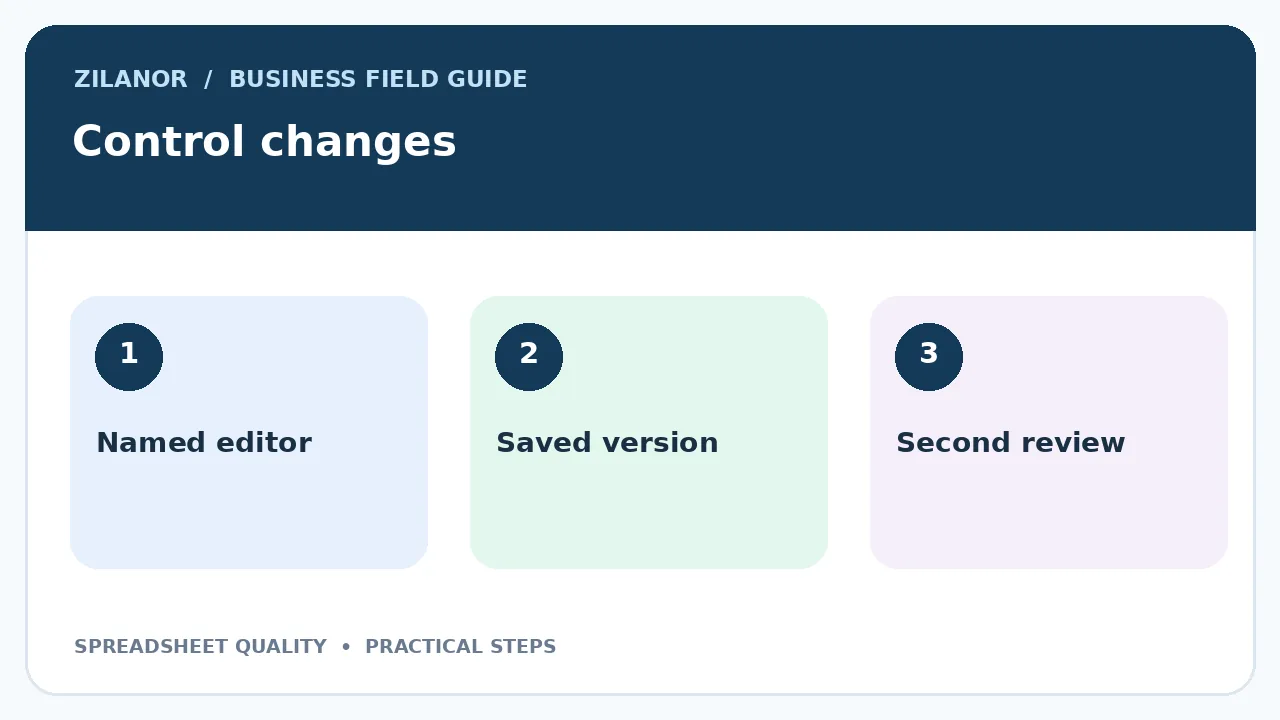
Give edit rights only to people who need them. Others can use a view link or a copy. Keep a clear master file name. Do not let staff share a chain of “final new copy 3” workbooks. That makes it hard to know which version was used for a decision.
Before a large change, save a dated version. Record what changed and who tested it. If the tool offers version history, learn how to restore an earlier copy. Test the restore path on a safe file once. A backup that no one can open is not much help.
When an employee leaves, review their access to shared files. If a sheet is owned by a personal account, move it under a team-controlled account where the tool permits it. Do this before access is removed, not after the owner is gone.
Use AI help with care
Ask for an explanation, then test it
An AI tool may help explain a formula or suggest a clearer way to write one. It may also give a formula that looks right but fails on an edge case. Treat the answer as a draft. Do not paste it into a live price sheet or payroll file without a test.
Remove private client data before sharing a sample with a public AI tool. You can often replace names with made-up ones and keep the same layout. Ask the tool to explain each part of a proposed formula in plain words. Then run the known-answer cases in a safe copy.
The NIST AI Risk Management Framework is a useful guide to thinking about AI limits. A small firm does not need a large AI programme to apply the basic idea: know the task, test the result and keep a person responsible for it.
Set a simple review routine
Use two layers for key files
The person who updates a sheet should check their own inputs. For a file that affects money or safety, a second person should review the final result before it is used. The second check can be short if the file has clear input fields, test cases and a matched source total.
Set a rule for changes made in a rush. If a price list must change today, note the reason and have another person check the top items. Do not skip the record because the owner is busy. A one-line change note is better than a long debate next month about who edited a cell.
Keep a list of files that need review. Start with the ten most used workbooks. Mark their owners and next check dates. Retire sheets no one uses so staff do not pick an old copy. The best way to reduce file risk is often to have fewer active files.
A one-hour team exercise
Choose one important workbook. Spend ten minutes listing its inputs and outputs. Spend fifteen minutes checking the data source. Spend twenty minutes testing five edge cases. Use the final fifteen minutes to fix one clear issue and name an owner for the rest.
If the file is too complex for this exercise, that is useful news. Split the work into small parts or ask for help from a skilled reviewer. Do not assume that a file is safe just because it has worked for years. Small errors can stay hidden until the volume grows.
What to do next
Start with a sheet that drives a real choice. Label its inputs, check one total against a source and test a few unusual cases. Give it a named owner and a simple way to save changes. These steps do not make every error vanish, but they make mistakes easier to spot, fix and learn from.

Pingback: AI Document Review for Small Teams: 2026 Guide