
Email Preference Centers for Small Businesses: A 2026 Guide to Respectful Marketing
Some people want news about your shop. Some want tips. Some only want to know when a sale is on. If you send the same email to all, you may annoy the people on your list. An email choice page can help. It lets each person pick the type of mail they want.
This page is often called an email preference center. The name sounds hard, but the idea is plain. Give people a fair choice. Keep that choice on file. Then make sure your email tools use it. This guide shows how a small team can do that.
Know why you send each email
First, list the kinds of mail you send. A bill or order note is not the same as a sale offer. A new sign-in alert is not the same as a monthly news email. Put each type in the right group. Then check the rules that apply to your buyers.
Do not call a sales pitch a service note. That can mislead people. If a buyer says no to ads, do not send ads under a new name. The point of the page is to let people make a real choice.
Make a short list of mail types
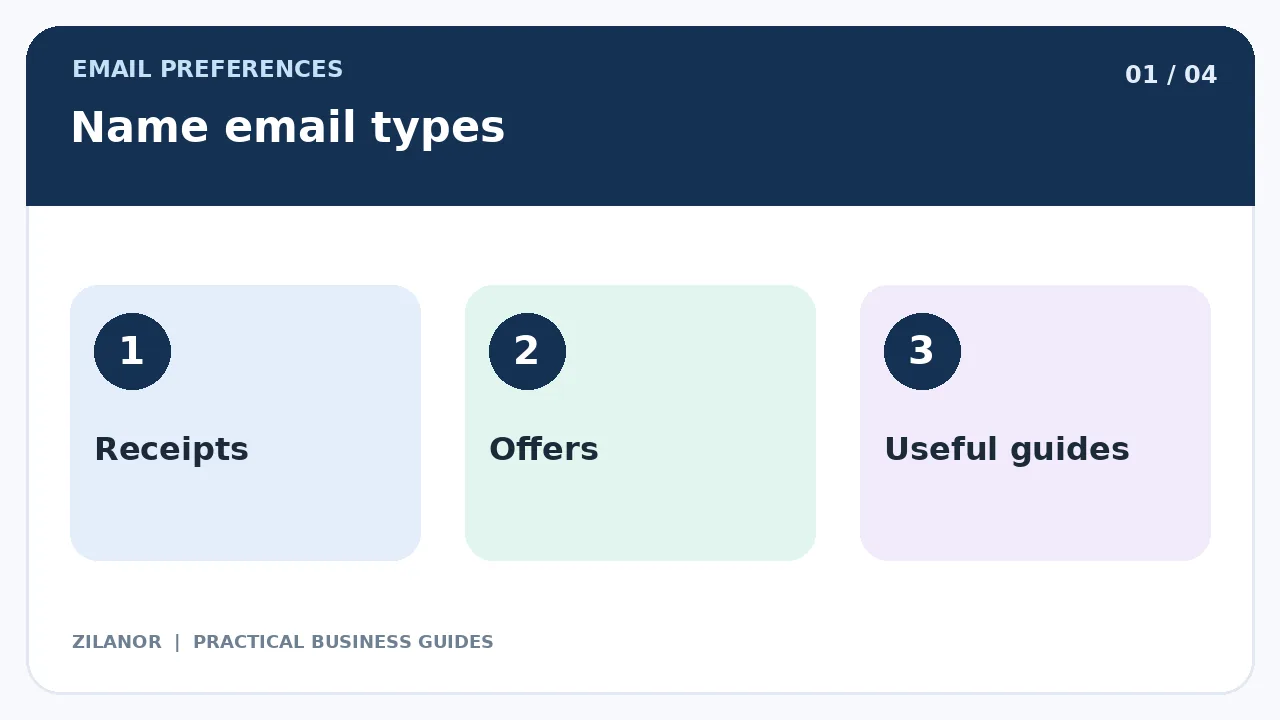
You might offer three choices. One could be product news. One could be tips and guides. One could be deals and offers. Keep the list short if your team is small. Do not add a choice that your email tool cannot keep apart from other mail.
Use plain words in each label. Say what a person will get. If you send one note each month, say that. If the pace may change, do not make a firm claim. A clear choice is better than a long form full of vague terms.
Keep the stop link easy to use
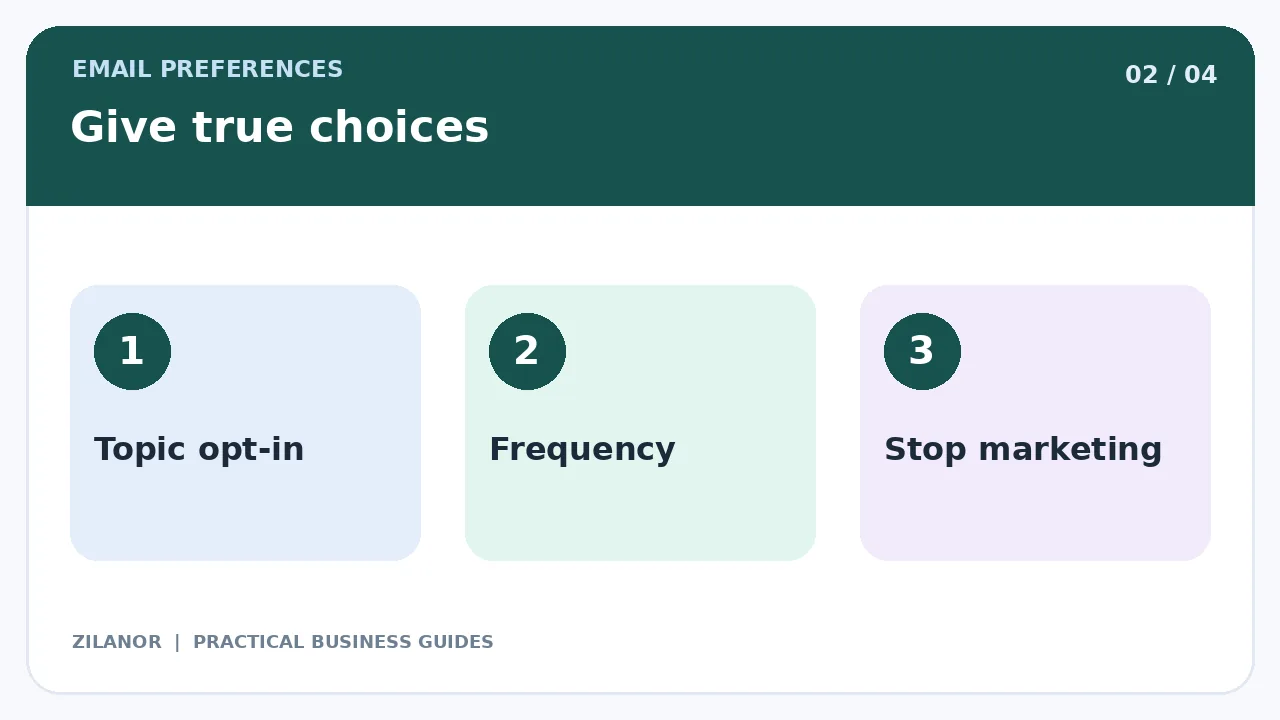
Every sales email should make it easy to stop future sales mail. Do not ask a person to log in just to leave a list. Do not hide the link in tiny type. Do not ask them to fill out a survey first. You may ask why they wish to leave, but the question should be optional.
Check the rules for the places where you send mail. Some email firms also have their own rules for bulk senders. Google has set rules for the mail that reaches Gmail users. Read the latest guide for your type and scale of mail.
A choice page is not a trick
Do not make “Keep all emails” bright and easy while “Stop all” is hard to find. Give each choice a fair look. If a person picks “Stop all sales mail,” save that choice. Do not add them back when you move lists or change tools.
Keep the page simple on a phone. Most people click the link from an email app. A page that is hard to tap will cause more pain than help.
Show the choices a person has now
When a reader opens the page, show which kinds of mail they get. Let them change each choice. Give a clear save button. Once the tool saves the choice, show a short note that says it worked.
Do not show a success note before the change is saved. If the tool fails, tell the reader. Give them a way to try again or ask for help. It is better to say there was a fault than to pretend the page worked.
Keep the design clean
Use text that is easy to read. Make each check box large enough to tap. Leave room between choices. Test the page with a keyboard as well as a mouse. If you use icons, do not make them the only clue. A short text label helps more people.
Also test a slow web link. Can the person still see a clear result? Can they get back to the page if it fails? These small checks help the page feel safe and fair.
Make sure the link is safe
The email choice link should open the right record. It should not show private facts to a stranger. Ask your email tool how it keeps links safe. Check what can happen if an old email is sent to a new person.
Do not put a full phone number, home address, or private note on the page. The page needs very little data. It may need a safe link token so the tool can find the right record. The user should not have to share more than the task needs.
Keep all email tools in sync
A small firm may use more than one tool. One sends shop news. One sends event mail. A sales tool may have its own list. Make a map of these tools. Choose which one keeps the main record of a person’s choices.
When someone opts out, send that change to every tool that may mail them. Test it. Do not trust a green tick on one page if an old mail flow still has the name on its list.
Watch for old lists
Old CSV files can cause harm. A team member may load an old list and add people who left months ago. Keep a stop list in a safe way. Check it each time you move data. Do not treat a fresh import as a fresh yes from the person.
A buyer who used two email names may have two records. Look at how your tools handle that. Do not guess that two names are the same person just due to a shared first name.
Check the rules on consent
Some places need clear consent for sales mail. Others have rules that vary by type of buyer or past sale. Your team must know which rules apply. A choice page does not grant you the right to mail someone who never said yes when the law needs that yes.
Keep the time and source of a valid choice when the rules call for it. Do not gather extra facts just because your page can. Store the record with care. Only staff who need it should have access.
Test with sample contacts
Make a few test names. Give each one a different set of choices. Try to stop all mail. Try to keep only tips. Try to change the pace of news mail. Then check the main email tool and any linked app.
Send a test message to each sample name. Did the right type reach each one? Did the stop link work? Check on a phone, a tablet, and a desktop. Also try a link that is old or no longer valid.

Do not count only clicks
The point is not to get more clicks on the page. The point is to send less mail that people do not want. Watch complaints, opt-outs, and support notes about spam. Look for signs that people find the choice page clear.
Open rates can be hard to read. Some mail apps hide or change how opens are tracked. A rise in opens does not prove your page made people happy. Use more than one clue.
Example: a home goods shop
A shop sells home items online. It sends care tips, sale notes, and news about local events. Buyers who live far away do not want local event news. The shop adds three clear choices to its email page.
It then tests an old mail flow. That flow still sends event notes to all past buyers. The team fixes it before the new page goes live. The work was not just a new screen. It was a change to how the whole email list works.
Make a simple launch plan
In week one, list the mail types and tools. In week two, write short labels and build the page. In week three, test each choice and each stop link. In week four, launch the page to a small group. Check that the tool keeps each choice. Then use it for the full list.
Choose one staff member to own the page. That person should check it when a new email tool or mail type is added. A page that works today can fail after a new link is set up.

Quick checklist
- Keep sales mail apart from key service notes.
- Give readers a few clear choices.
- Make the stop link easy to find.
- Sync all tools and old lists.
- Test each path on a phone.
Common questions
Can the choice page take the place of the stop link?
No. It should make the stop process easy. Check the rules for your email firm and the places you serve.
Should I let people pick how often I write?
Yes, if your tool can keep that promise. If not, start with a few clear topics.
Do all places have the same email rules?
No. Check the law for each market. Do not assume one set of rules works in all places.
Sources
Read Google’s email sender guide. For laws on direct mail, see ICO guidance where it applies. Check the rules for your own market too.