

Internal AI Search for Small Businesses: Organize Company Files Before Using a Chat Assistant
Your team may have a lot of files. Some sit in a shared drive. Some are in old chats. A few may be on one staff laptop. When someone needs the right rule, it can take too long to find it.
An AI search tool may help staff find answers. But it can also show an old rule or a private file. You need to clean up your files before you let a chat tool read them. This guide shows a safe way to start.
Pick the questions you want to answer
Start with a short list. A new hire may ask how to book leave. A support worker may need the new return rule. A sales lead may want the steps to send a quote. These are good cases if the facts are in a file the staff member may read.
Do not ask the tool to make key choices on its own. It can help find a rule. It should not write a new rule or grant a refund with no human check. Keep the first test small.
Know who may see each file
Some files are safe for all staff. Others hold pay, private client deals, or staff health facts. A search tool should not show a file to a person who has no right to see it. This needs real access rules in the system, not just a note that asks the AI to be kind.
Make a list of staff roles. Ask which file groups each role needs. A worker may need a public guide but not a client price deal. Test the rights with sample staff accounts before you use real data.
Clean up old files
Look for two or more copies of the same rule. You may see file names like final, final2, or old-copy. Find which one is live. Ask the owner to check. Then mark old files as past copies and keep them out of day-to-day search.
Give each key file a clear name. Add the date, topic, and owner. Use short headings in the file. A clear file helps people find facts even if the AI tool is down. A tidy drive is a win on its own.

Keep one main source for each rule
Pick one live page for each key topic. It may link to more detail. But the main rule should be easy to find. When a rule changes, edit that page. Do not leave two live files with two claims.
It is fine to keep old files for a fair reason. Some may be needed for a past deal or local law. Store them in a place the AI tool does not treat as a source for new staff replies.
Keep private files out of the first test
Scan the folders you plan to link. Look for names, phone numbers, bank data, ID scans, pay files, and passwords. Remove high-risk files from the pilot set. A small firm may not need to let AI search any of these.
Ask your tool firm where it stores the files. Ask if it uses them to train its AI. Ask how long it keeps chats and logs. Read the plan terms that apply to your account. Do not trust a vague “safe” badge on a sales page.
Check the search tool’s access rules
Some tools make a new copy of files to build a search list. Others read your drive when someone asks a question. In both cases, staff rights must still work. Ask how fast changes to rights take effect.
Try this with two test users. Give one access to a staff guide. Give the other no access. Ask both for a fact from that guide. The second user should not get the private text. Then remove the first user’s right and test once more.

Do not rely only on a prompt
A prompt such as “Do not share secret files” is not enough. Staff rights must be checked by the tool and your file system. Also check old shared links. A link made years ago may still give broad access.
When a worker leaves, turn off their account and any old tokens. Make sure the search tool no longer lets them open files. A clean exit step is part of the plan.
Test answers with real work cases
Write down twenty common questions. Use no real private names. Ask about rules with dates, tasks with steps, and cases that have no clear answer. For each one, write the right source file. That will help you check what the AI says.
A good reply should point to the live file. It should not make up a rule. If the file has no answer, it should say so. It can tell the user who to ask. That is far better than a smooth but false claim.
Test old and new rules
Put an old sample rule in a test folder. Put the new rule in the live folder. Ask the AI which one is in force. Does it use the right one? Does it show the date? If it picks the old one, fix your files or search rules before launch.
Ask staff to check a few replies by hand. If two people do not agree on the right rule, the team must settle that first. The AI should not decide what your business means.
Make each answer easy to check
A short reply with a link can be more useful than a long block of text. For a leave rule, show the main step and the live guide. For a hard case, give the link and say whom to ask. Staff should be able to check a claim in a click.
Do not copy a full private file into a chat if a safe link will do. Keep the reply as short as the task allows. This can help cut both errors and data leaks.

Keep the file list fresh
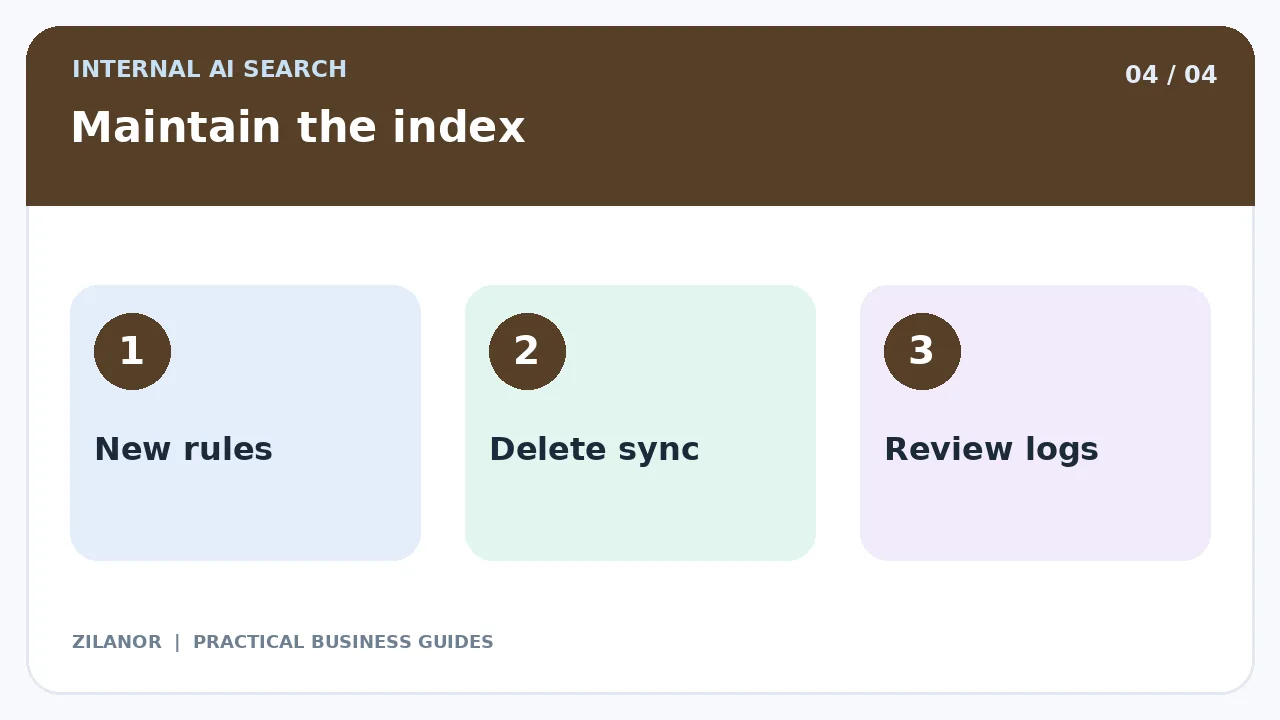
Ask how often the AI tool checks for new or changed files. A rule may change today while a search list still has last week’s text. Test how fast updates show up. If a file is gone, make sure the tool does not keep an old copy for too long.
Choose an owner to check the most used files each month. Keep a short log when a key rule changes. Ask staff to flag old answers. A good system needs care after launch too.
Check if the tool saves time
Time how long staff take to find a right answer now. Then test the new tool. Count wrong replies as well as fast ones. Ask staff if it helps or gets in the way. A fast wrong answer is not a gain.
Count the work needed to clean files and keep rights up to date. If a tidy folder and a normal search bar solve the need, that may be enough. You do not have to buy AI just because it is new.
Example: a small agency
A team has thirty shared folders. It wants new staff to find brand rules fast. But it also has old client fees in the same space. The team moves those files to a safe folder. It picks one live guide for each task.
Next, it tests the AI search tool with two staff roles. The junior worker can see the brand guide but not the private fee file. When the AI cites an old page, the team cleans up the source. The pilot shows that file care matters as much as the new tool.
Four-week plan
Week one is for questions and file owners. Week two is for cleanup and access checks. Week three is for test replies and links. Week four is for a small staff pilot. Do not turn on the tool for the whole firm until these checks pass.
Quick checklist
- Pick a few clear search tasks.
- Keep one live file for each rule.
- Hide private files from the pilot.
- Test links, dates, and staff rights.
- Review wrong replies each month.
Common questions
Can I link my whole drive?
Start with a small, clean set of files. Old and private files may be mixed in the rest.
Will the AI always cite the right file?
No. Check links and dates. A cited file can still be old or wrong.
What if staff leave?
Remove their access. Check the search tool, old links, and tokens too.
Sources
Read the NIST guide to AI risk. For safe file access, see FTC tips for small firms. Check your AI tool’s own terms and data rules as well.