
Shared Customer Inbox Setup for Small Teams: Routes, Replies and Privacy
When three people read the same support email, a buyer may get three answers or none. One person assumes the other has replied. A shared inbox can solve that problem, but only if the team sets clear rules for who owns each message. A tool alone cannot decide what good service means.
This guide helps a small firm set up a shared customer inbox. It works for email, help desk tools and a mix of chat channels. The plan focuses on tasks, access and handoffs, not on one brand. Rules about personal data and record keeping vary by market, so check the ones that apply to your firm.
Map the messages you receive
Choose a few useful groups
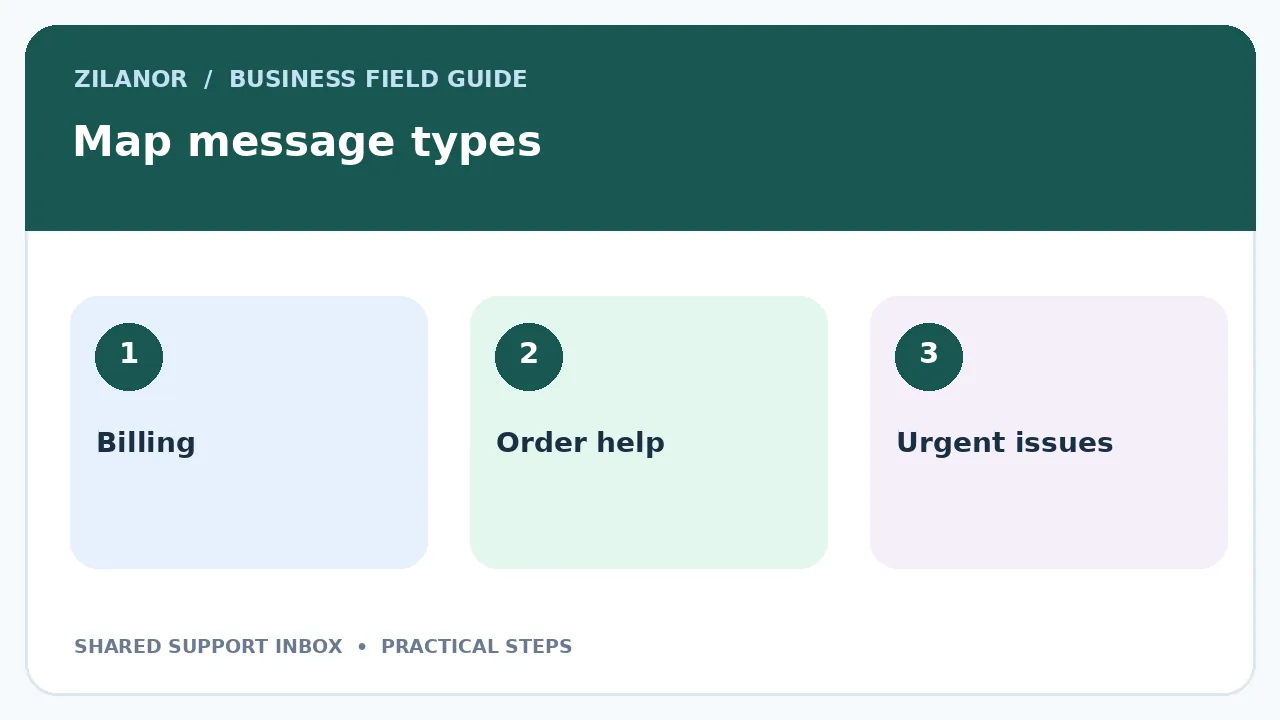
Read a sample of recent support messages. Sort them by the task: order status, billing, product help, complaint or sales question. Do not create twenty groups on day one. A short list makes it easier for staff to pick the right path.
Mark messages that need special care. A safety report, private account request or fraud warning may need a senior person. A routine delivery question can usually go to the normal support lead. Write down which topics must not be handled by a general queue.
A small furniture shop may get messages about delivery slots, damaged items and custom sizes. Those do not need the same person. The delivery team can check dates, while a product lead may need to judge a damage claim. Routing should match real work.
Give every message one owner
Separate viewing from responsibility
Many tools let all staff see a ticket. That does not mean all staff should reply. Give each open case an owner, even when another worker helps. The owner checks the facts, sends the next update and closes the case only when the task is done.
Use a short set of states such as new, in progress, waiting on customer, waiting on team and resolved. Define each one. A case should not sit in “waiting” with no next date. Add a due time or a reminder so the owner knows when to check again.
When staff go on leave, move their open cases to a backup. Do not just forward their emails. The new owner needs the prior notes and the next action. A clear handover avoids asking the buyer to tell the whole story twice.
Set a realistic reply target
Promise only what the team can deliver
A fast reply is useful, but a rushed wrong answer can create more work. Set a first response target based on your hours and staff. If the firm is closed at weekends, do not promise a one-hour reply all week. Show the service hours near the contact form.
Use a different path for urgent issues. A safety case or a blocked paid service may need faster review than a general question. Make the rule clear to the team and test how a message reaches the right person when the main worker is away.
Review the target after two weeks. Count how many cases met it and what stopped the rest. If staff often miss it because they wait on another team, fix that handoff. Do not blame the inbox owner for delays outside their control.
Write short reply guides
Keep room for human judgement
A reply template should help staff gather facts, not make every message sound the same. Write a short opening, a clear question and the next step. Leave space for the case detail. Ask the agent to read the buyer’s message before choosing a template.
For an order delay, the guide might say to check the order, the carrier status and the last promise. The reply should state what is known and when the next update will come. It should not claim a parcel will arrive tomorrow unless that is supported.
For a refund issue, staff should use the current policy and local rules. Do not make a template that offers a refund in every case, or one that rejects every claim. The right guide sends unclear cases to a person with authority.
Protect customer data in the inbox
Use roles and safe notes
A shared inbox may hold names, addresses, order numbers and private details. Give access only to workers who need it. Test the roles before adding contractors. A worker who answers product questions may not need to see full payment records or export the whole customer list.
Do not ask buyers to email passwords, full card numbers or identity papers unless a lawful and secure process truly requires them. If a sensitive case must be handled, move it to an approved secure channel. Put a short rule in the reply guide so staff know what to do.
Review access when a team member leaves. Change shared credentials where any still exist and move toward named accounts. Keep a record of who can view, edit and export customer data. A low-cost tool is not worth a weak data process.
Connect channels without losing context
Test email, chat and forms one by one
If the site has a contact form, send a test message and check that it becomes a ticket. Try one with a file, one with no phone number and one with a reply from a different address. Confirm that the buyer receives a clear acknowledgement when appropriate.
When chat and email both reach the same inbox, check for duplicate cases. A buyer may send a chat message and then email the same issue. Staff should be able to link the two without deleting useful notes. Do not merge cases based only on a matching first name.
For a global team, check time zones and language tags. The tool may place a message in the wrong shift if its clock is set to a different zone. Test during a handoff between shifts. Keep timestamps clear.
Make internal notes useful
Record the next action, not a long story
A good note says what was checked, what was found and what happens next. “Carrier site checked at 14:00; no new scan; ask warehouse by Friday” is more useful than “still looking.” Keep notes factual and respectful. A buyer may later see part of the record.
Do not store guesses about a person’s motives. If a customer is upset, note the issue they raised and what the team offered. Keep the tone calm. A clear case record helps a second worker act without taking sides.
When a case needs a specialist, write the exact question. A vague tag such as “please advise” makes the next team search the whole thread. Include the source record and the decision needed.
Test with a small pilot
Try the paths that often fail
Choose one or two staff members for a short pilot. Use test cases for a normal question, a refund, a duplicate ticket, a spam message and a case that needs a manager. Check the owner and state after each step. Then have a different person take over a case.
Measure whether every case has an owner, whether the next step is clear and whether the buyer gets one sound answer. A tool may show a neat dashboard and still fail on the handoff. Watch actual work, not only the count of tickets closed.
Ask staff what took extra time. If they must copy the same order number into three fields, look for a simpler setup. If the tool hides key notes, change the view or the work rule. A pilot should shape the workflow before all staff join.
Use simple measures after launch
Check quality as well as speed
Track first reply time, cases still open, cases moved between owners and repeat contacts on the same issue. Read a small sample of replies each week. A fast close rate can hide poor answers if buyers must reopen the case.
Look for the top reason a case gets stuck. Perhaps the warehouse does not update stock on time. Perhaps billing must approve a credit. Fix that process with the right team. An inbox can show the delay but cannot remove it on its own.
Keep reports simple enough to act on. Pick two measures to improve each month rather than building a large scorecard no one reads. Tell staff what changed and why.
Plan for a tool change
Keep an exit path from day one
Before signing a long plan, ask how tickets, notes and attachments can be exported. Test with a small sample. Check whether the export keeps dates, owners and case states. If the tool only offers a basic text file, the team may need more work to move later.
Keep the service address under the firm’s control, not tied to a worker’s personal mailbox. Know how to switch the route if the tool goes down. Have a simple fallback that lets staff receive urgent messages without losing them.
The OECD’s 2025 SME digitalisation report covers the wider role of digital tools and security for smaller firms. The useful test for your inbox is still local: do customers get clear answers and can staff work safely?
Try one full support handoff
Follow a case from start to end
Send a test email from a safe address. Ask when an order will ship. Watch where the note lands. Does it have an owner? Can the lead find the order? Can they see the last reply? Check each step. Write down what did not work.
Move the case to a new lead. Do not tell the new lead the full story. Ask them to read the notes. Can they tell what the buyer needs? Can they find the next date? If not, fix the note guide. A clean handoff should not need a long call.
Now send a second email about the same order. Does it make a new case? Can staff join the two safely? Check the name and order ID. Do not merge two people by mistake. Mark which facts must match first.
Try a case with a private file. Ask who can see it. Remove the test worker’s access. Can that worker still open the file? If yes, stop and fix the role. Never use live card data for this test.
At the end, ask one worker to close the case. Check the reason and the last reply. Then ask the buyer to send a new note. Can the team find the old case? This shows whether the inbox can keep a clear history.
Test the spam path as well. Send a safe test note. Mark it as spam. Can the team undo it? Check the log. Then test a wrong route. Move the case to the right lead. Check who gets the alert. These small checks can save real work later.
First-week checklist
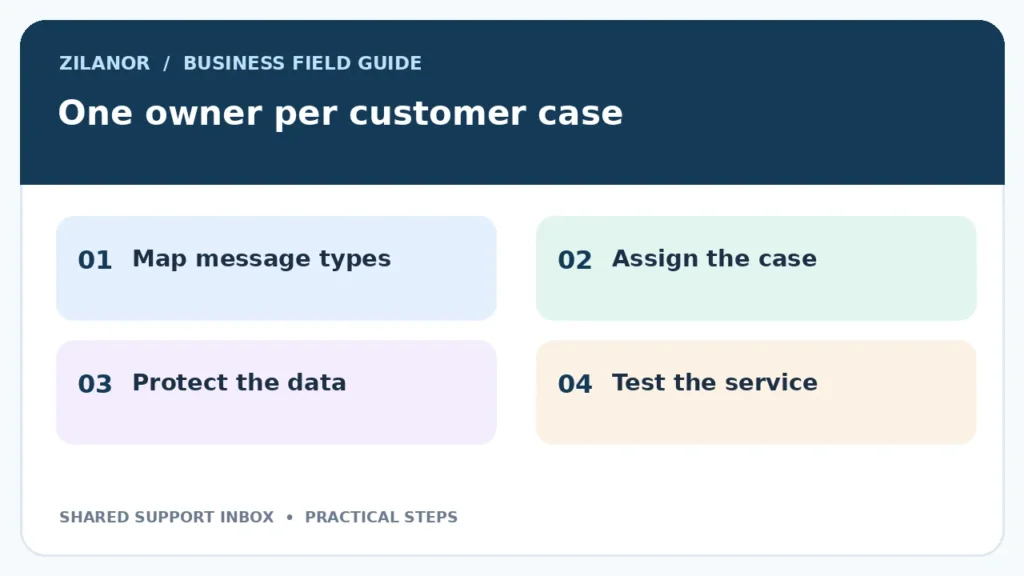
Map your message types, set five or fewer states and name one owner for each case. Write reply guides for the top three issues. Test email, form and chat routes. Then run a pilot with real staff and safe sample cases. Fix the worst handoff before adding more features.
A shared inbox should make service feel joined up. The best setup is one in which every case has a next step, private data stays protected and buyers do not have to repeat themselves.